
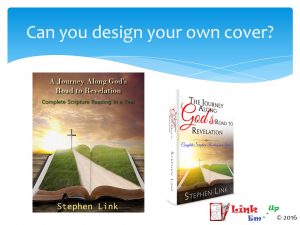
You can design your own cover, but should you always do so? Compare the two covers above, and decide this for yourself. The cover on the left is one that I had created after purchasing the graphic that was desired for this book. I was working with someone through Fiverr and the process was going a little slowly, so I tried my hand at creating a cover. As you can tell, the investment of a total of $26 for this cover was well worth it.
The cover comparison shown above is my first attempt at creating a cover, and I must say that I learned from it. Recently, I was making five more books from a series available through CreateSpace (I already had one with a cover purchased through Fiverr). I returned there to purchase another five, reworded, covers from the same vendor only to find that the original order had disappeared. I then attempted to get bids for someone else to duplicate the cover five times. After receiving a quote of $50 for all five, I decided to give cover creation another shot. After all, I only needed to create one cover and change the words four more times. We will start with viewing one of the covers and then detailing the process.

Finding the graphic that was used in the original creation was my first adventure. After multiple web searches, I finally ended up with “man holding holy bible looking out window” and I found that this is created by Balazs Toth and offered by dreamstime.com. That cost $15 for the download and usage rights. Next up, I downloaded an open source image editor called GIMP (Gnu Image Manipulation Program) so that I could manipulate the bottom portion of the graphic and impose the words on it. This would be the scariest part for a writer/programmer type person. Finally I settled on selecting the desired area and applying a Filter-Blur. After that, placing the words and changing them was quite simple.
Could I have used MSPaint to do this? I am quite familiar with using that program for image viewing and minor manipulation, so I thought I would try. That definitely did not work, for me at least. It seems that once you add words to an image using Paint, they become part of the graphic. Then you have to save, undo, and retype it all. That is a bit cumbersome.
Would I have been better off to have paid the $50 and avoid the hassles? Well, we are in the real world. I understand that $35 or less can be used for a day, maybe even a week, of wages for people in developing countries. I am in the USA, and that still consumes four to five hours of work for some. That amount, when kept in an author’s meager budget, could make a big difference at the grocery store or the gas pumps.
As the motivational books advise, stretch the boundaries of your comfort zone and you can be greatly surprised at your capabilities. I was quite impressed with this book cover creation attempt and the money saved.
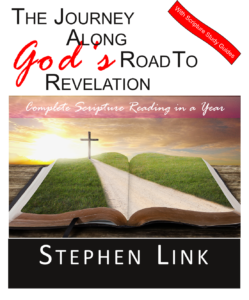
11/14/16 Update – The top picture in this post shows a comparison of my original cover design for “The Journey Along God’s Road To Revelation” with the design acquired from a Fiverr designer. Unfortunately, that designer was unavailable when I needed a cover redesign for the new version of the book. I worked with the open source software called Scribus and created the covers shown below. Yes, you can create your own cover for Createspace.



[…] In a previous post about publishing through CreateSpace, I mentioned how easy it is to design a cover using their Cover Creator tool. The only problem that I have found is when you have a full-sized cover already designed, perhaps for an Ebook, and that has the book name and author name already blended in. You can hide many elements using their tool, but I could not find a template that would let me hide the title. The next option was their cover template which gives you a pre-formatted template based on the number of pages in your document. The problem with using that is, because I am not a graphic designer, I do not have the proper tools to edit a PDF. That took this tool out of the running. My fear of designing a complete PDF from scratch was quite unfounded. I, once again, used their helpful suggestions on formatting and calculating the spine size based on the number of pages. Using those calculations, I fired us MS Word, set the page size to the proper dimensions and the margins to .125″ all of the way around, and began my design. After placing the predesigned graphic on the right side (front cover) and sizing it properly, I then put a gradient text box in for the back cover and inserted the text and picture desired. Save as PDF, upload, and you are done. Of course, I may find that minor adjustments are needed before final release. This will be easily discovered when proofing the complete book online with their Previewer tool. Two books in, and I am totally impressed with CreateSpace! 5/8/16 update – I have since published more than eight books through CreateSpace. I detailed the latest cover creation in CreateSpace cover, part 2 […]